Player’s card-on-file information carries over when converted to a customer
In 3.100, you can add a new player through Starter Hut and their credit card information as a card-on-file (COF), and then converting that player to a customer, their COF information transfers over to the Customer module.
To convert a player with a credit card on file to a customer
Note: This solution needs the player’s credit card information to complete.
-
Go to Starter Hut.
-
Reserve a tee time and add a new player with a card on file:
-
Select a time cell and select Book a Tee Time.
-
Click Add New. The Golfer Information pop-up dialog displays.
-
Select the Player tab at the top of the box, and add all the information required (the red fields).
-
Click the Add Card on File button below to add the credit card information. The AUTHORIZING TRANSACTION status bar displays, then the Please Swipe prompt displays.
-
Click Manual Key to enter the card number in or swipe the card now. The AUTHORIZING TRANSACTION status bar displays again and then the reservation screen displays again.
-
Check in the player. The player’s tee time displays on the tee sheet. Note: Checking a player in doesn’t start the conversion to a member.
-
-
To convert a player to a member:
-
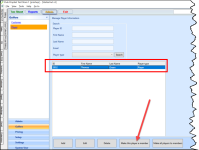
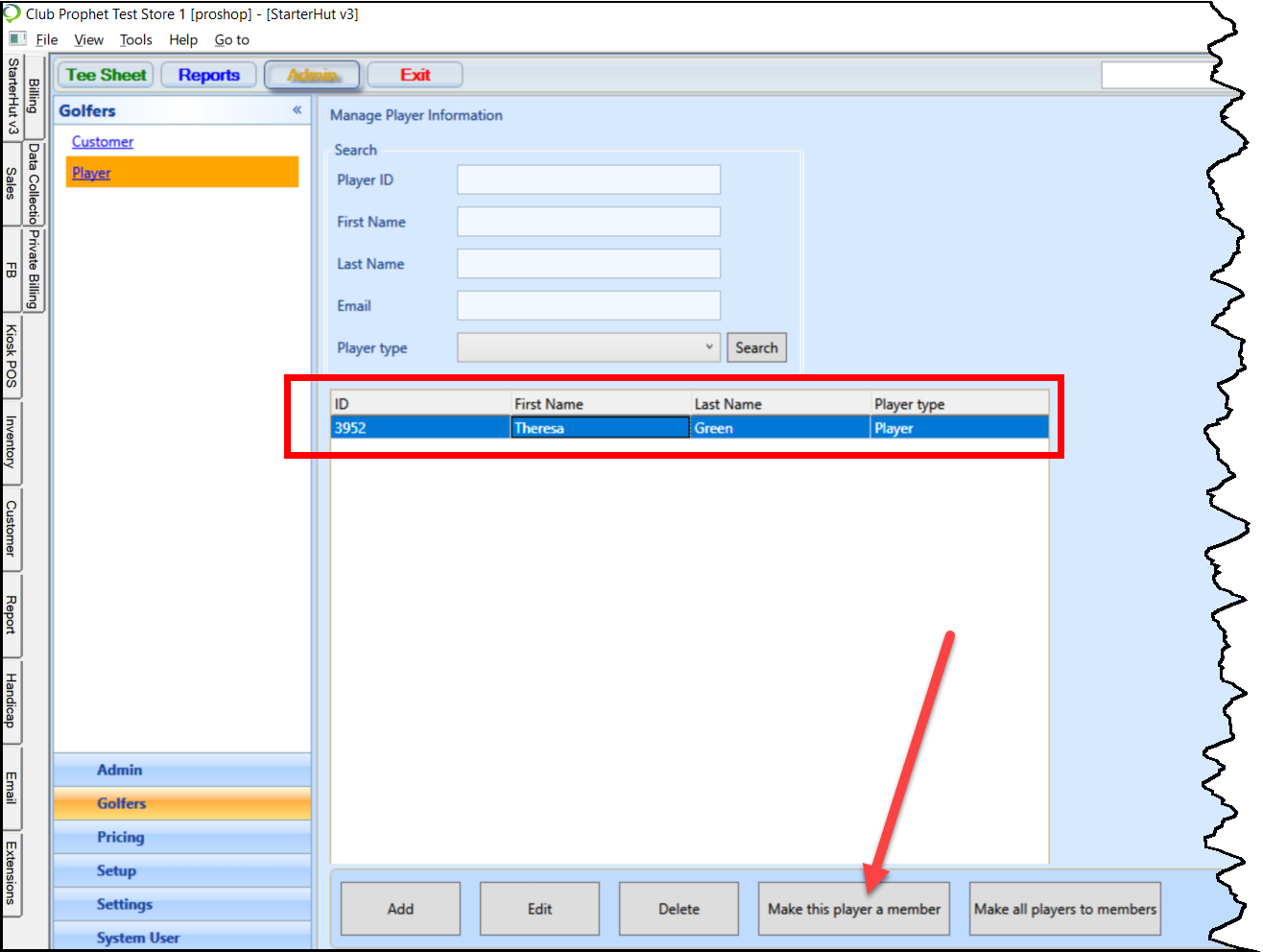
Still, in Starter Hut, select Admin | Golfers | Player.
-
Search for and select the player.
-
Click the Make this player a member button below. The Set Class dialog displays.
-
Select the Set Class the desired class. The Set Member Type screen displays.
-
Select the Set Member Type. A message displays stating: Convert player to member success.
-
To verify the credit card exists for this converted player in the Customer module:
-
Click the Customer link in the top-left corner of the same screen. The Customer module opens.
-
Look up the customer that you just converted.
-
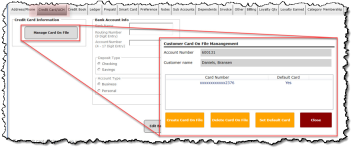
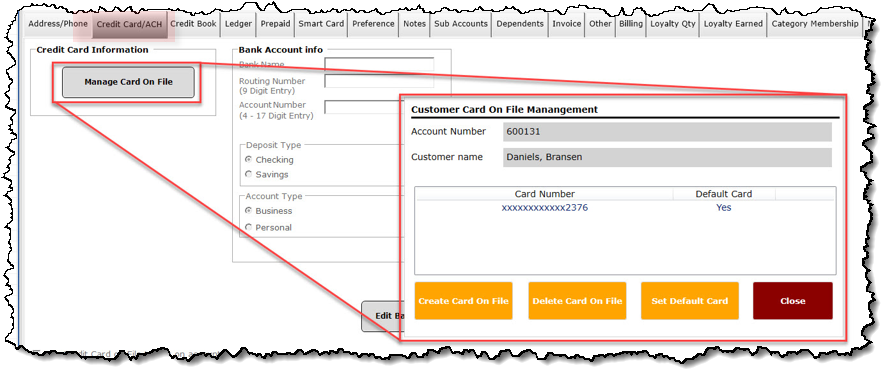
With the customer pulled into the Customer Information screen to the right, select the Credit Card/ACH tab mid-screen.
-
Select the Manage Card On File button. The Customer Card On File Management pop-up displays with the card number masked to hide the actual credit card information.
-
-
Go back to the tee time and process the check-in transaction with the card-on-file.
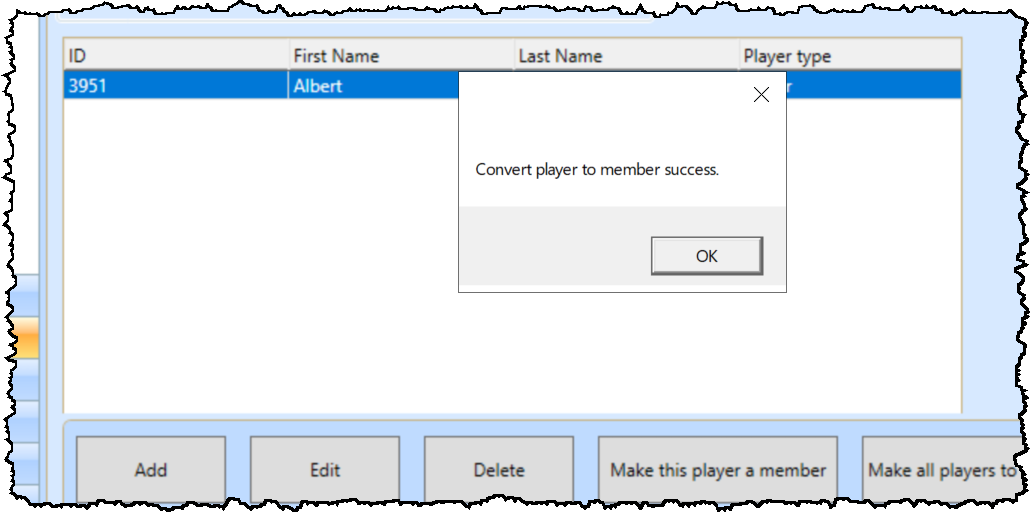
f. Click OK.
Shout out to Karin Attolino@grgolfclub.com